Step by step
How the app learns a new bank
These are the real screens, in order. Click any screenshot to enlarge it.
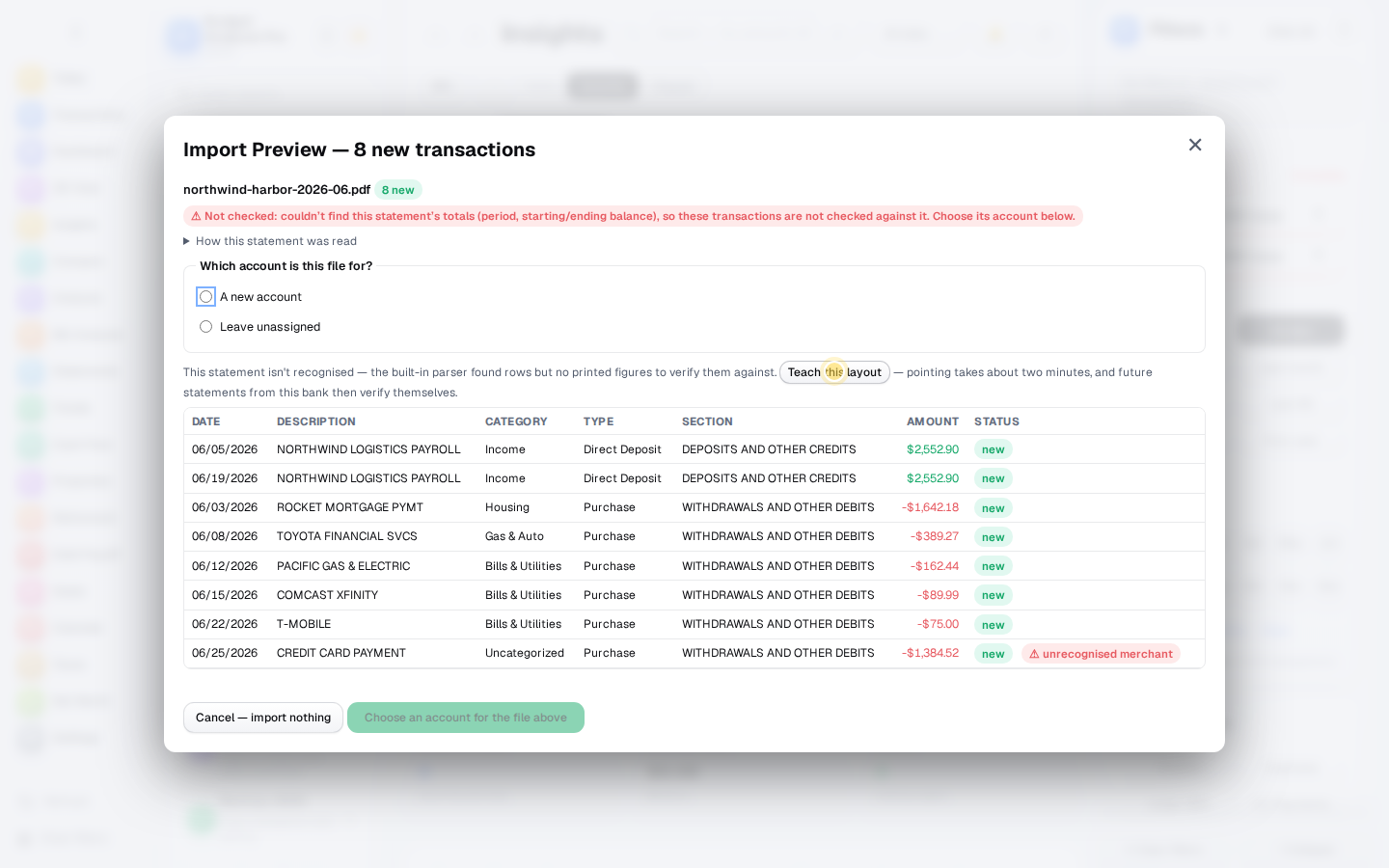
1Import a statement the app doesn't recognize
Drop the PDF in as usual. The app still reads the rows, but it can't find this bank's printed balances and totals, so it can't check them. It says so plainly and offers Teach this layout. Nothing is imported until you choose.
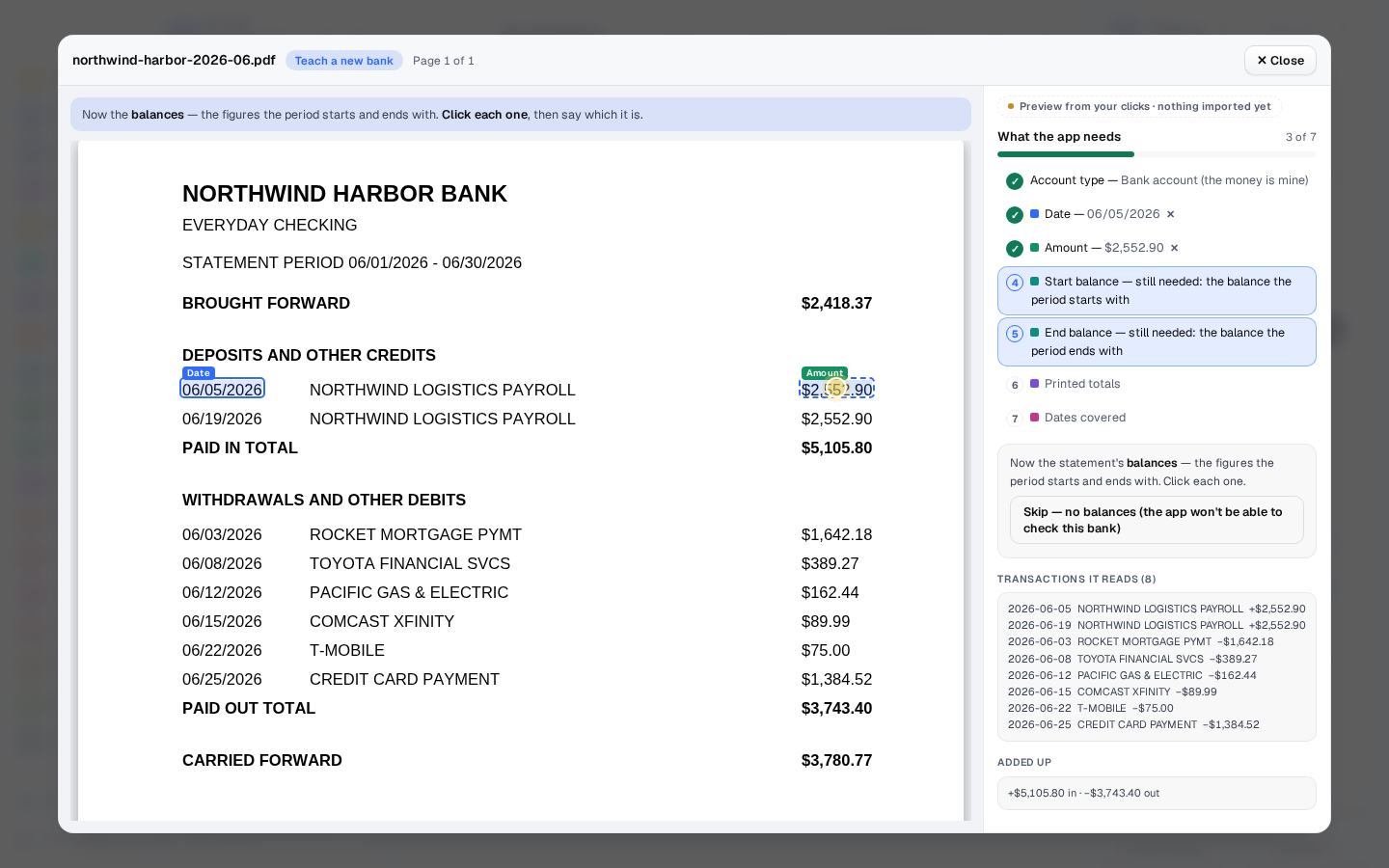
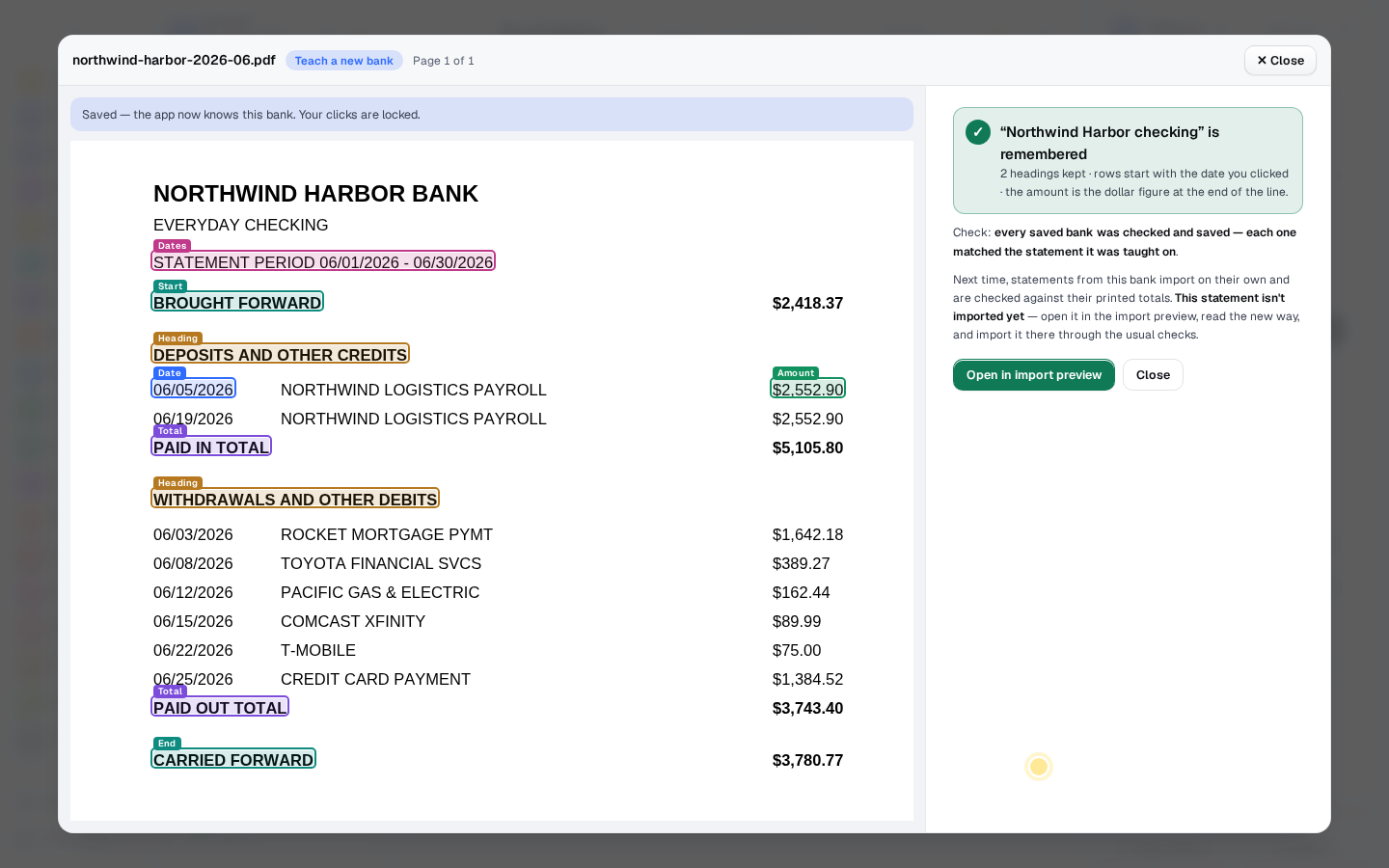
2Point at a date and an amount
The statement opens on the left. Answer one question (is the balance money you have, or money you owe?), then click a transaction's date and its amount. The panel on the right immediately shows every transaction the layout would read.
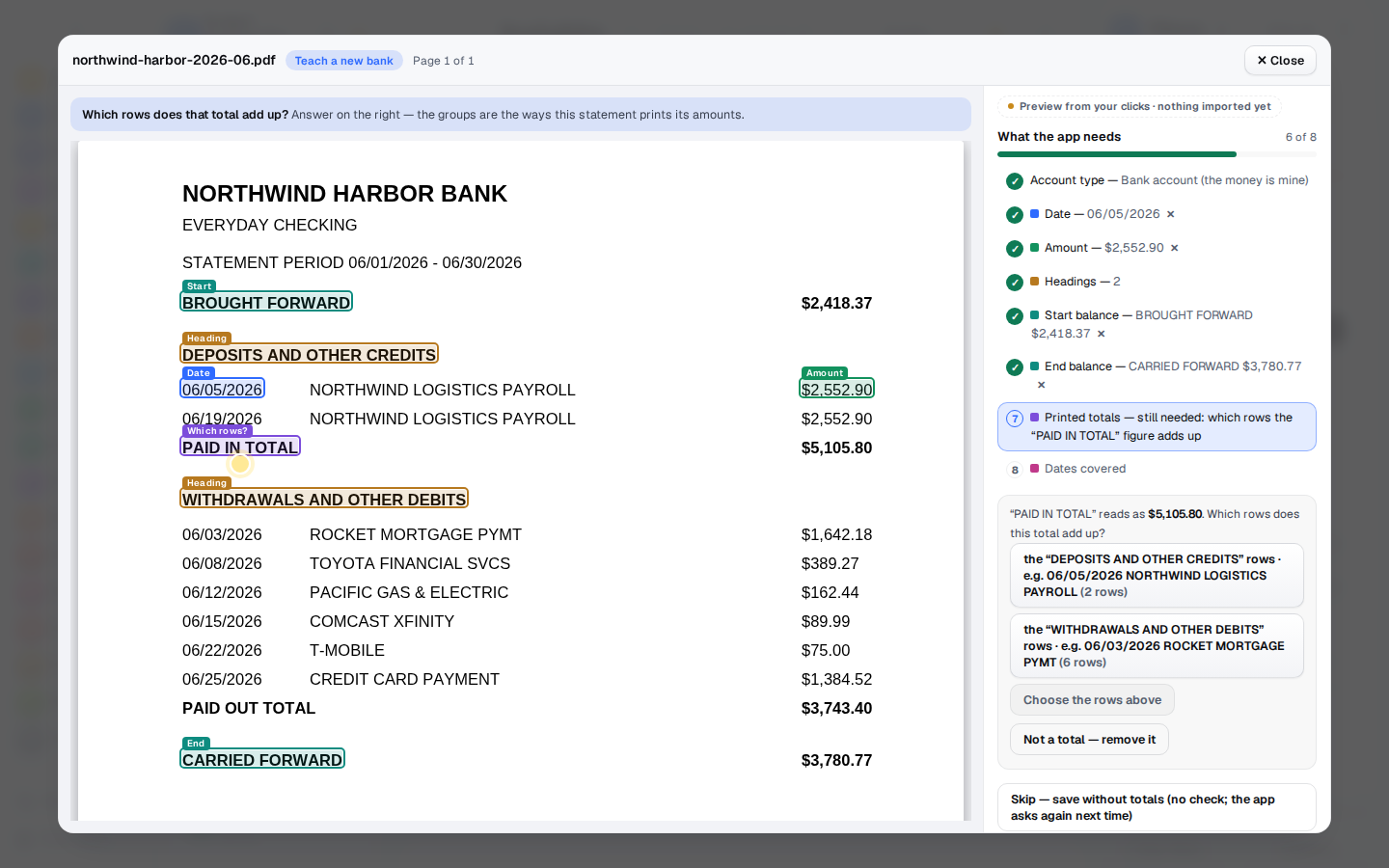
3Point at the balances, headings and totals
Click the opening and closing balances, whatever this bank calls them. Here they're “Brought forward” and “Carried forward”. If the amounts have no plus or minus sign, click the section headings, such as “Deposits” and “Withdrawals”, so the app knows which way the money moved. Then click the printed totals and tell it which rows each one adds up. The app asks only for what it still needs and says why.
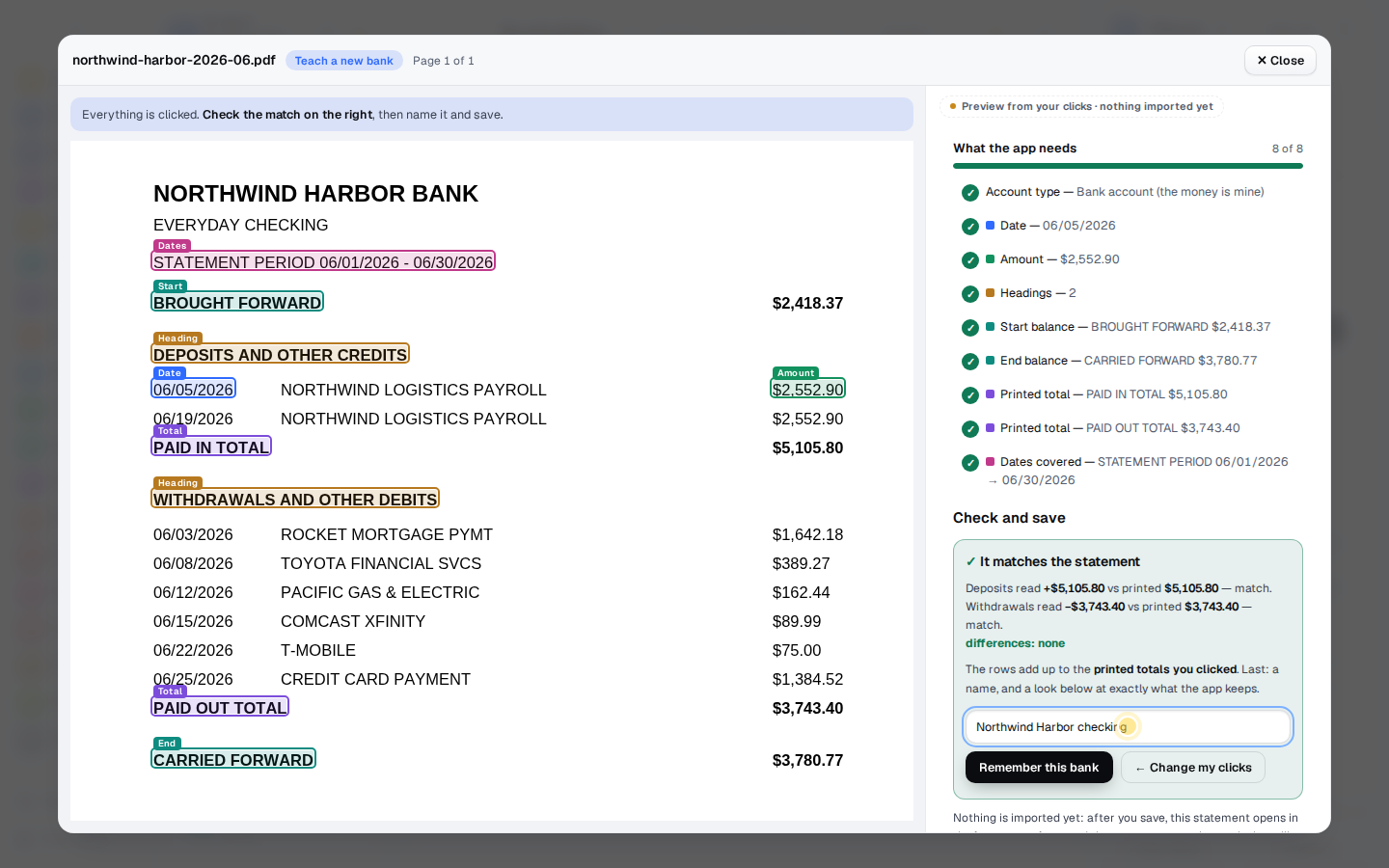
4The app proves the layout adds up
Before anything is saved, the app reads the statement with the new layout and compares it to the statement's own printed totals. Here: deposits $5,105.80 read vs $5,105.80 printed, withdrawals $3,743.40 vs $3,743.40, differences: none. A layout that doesn't add up is never saved.
You also see exactly what will be stored: the name you choose and the labels you pointed at. No amounts, names or account numbers. Labels like “Brought forward” are saved in a scrambled form that can't be read back.
5The layout is remembered
Give it a name and click Teach this layout. Teaching itself imports nothing. You continue to the normal import preview and decide there.
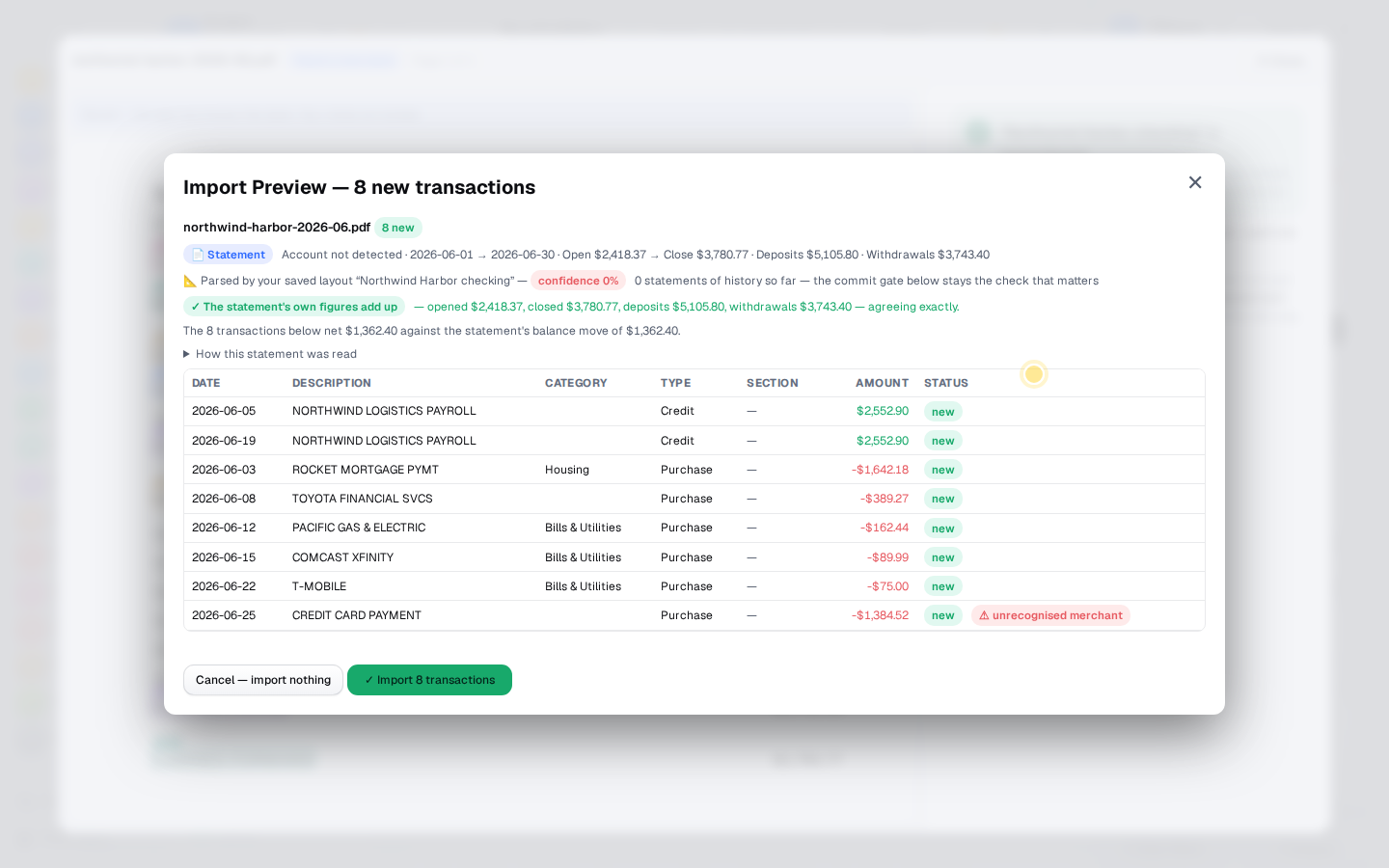
6Import the statement, now checked
The same statement opens in the import preview, read by your new layout: “The statement's own figures add up”, with the opening and closing balances and totals in agreement. Import it and the month is marked Verified.
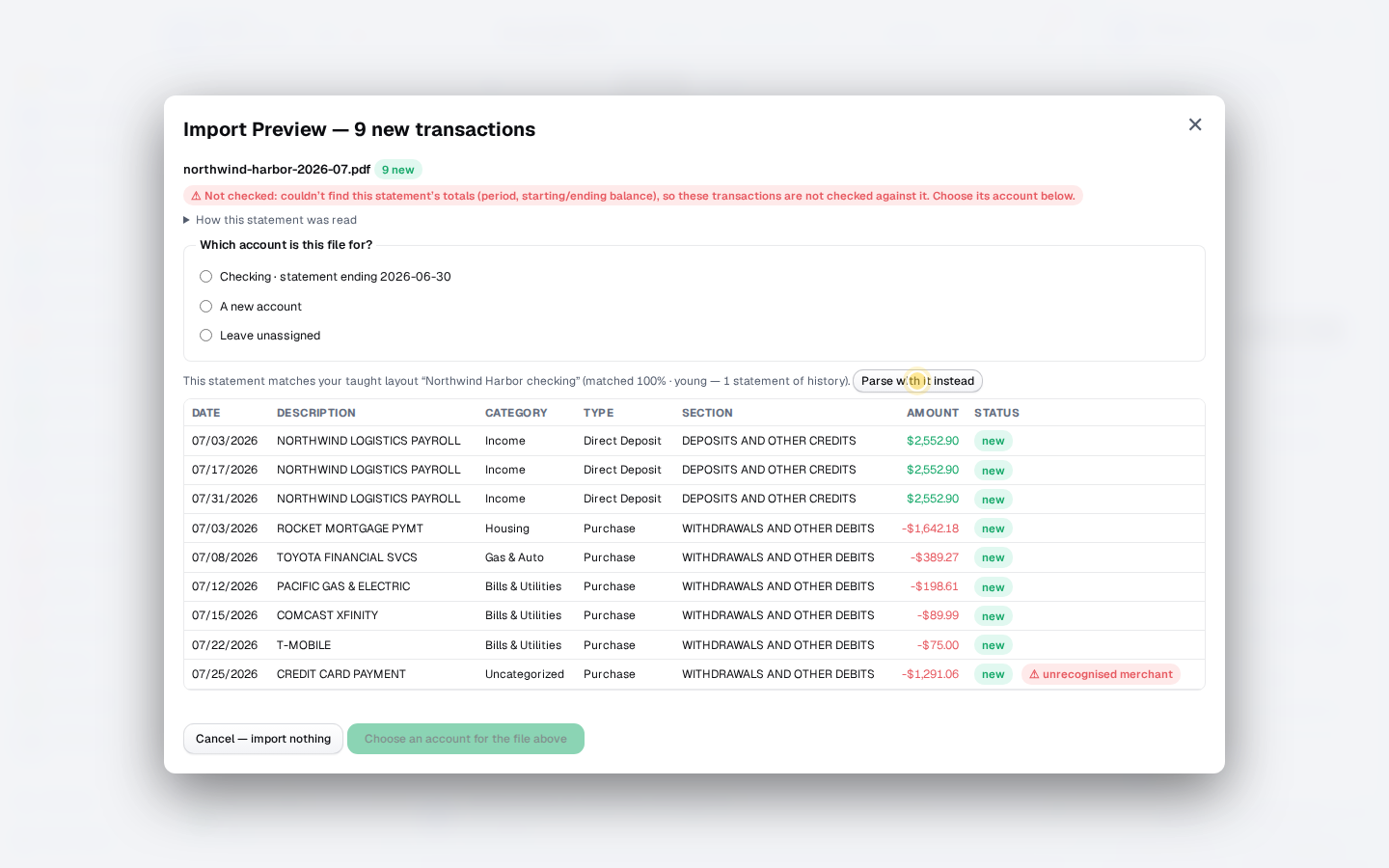
7Next month, the bank is recognized
Drop in the next statement from the same bank and the app recognizes it: “This statement matches your taught layout … Parse with it instead”. One click, and it's read and checked the same way.
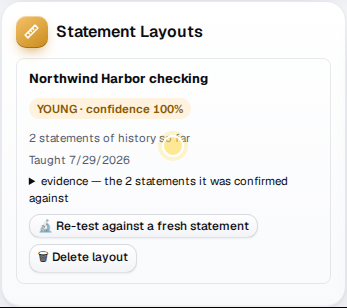
8Trust grows with every statement
Saved layouts are listed under ⚙️ Settings → Statement Layouts, with the statements each one has been checked against.
- Young: for its first 5 statements, a layout is offered with one click.
- Trusted: after 5 statements that add up, it's applied automatically.
- Bank changed its statement? If a layout stops adding up, the app won't use it. It reads the statement with its built-in reader instead and tells you why. Use Re-test to check a layout against a fresh statement, or teach it again.
 Budget Analyzer Pro